pc guide | Updated August 4, 2026
Best Halo: Campaign Evolved PC Settings
Set resolution and a stable frame-rate target first, then tune the preset and expensive effects one change at a time.
There is no universal best preset. Use a repeatable combat checkpoint, measure frame time as well as average FPS, and keep enough GPU headroom for demanding encounters.
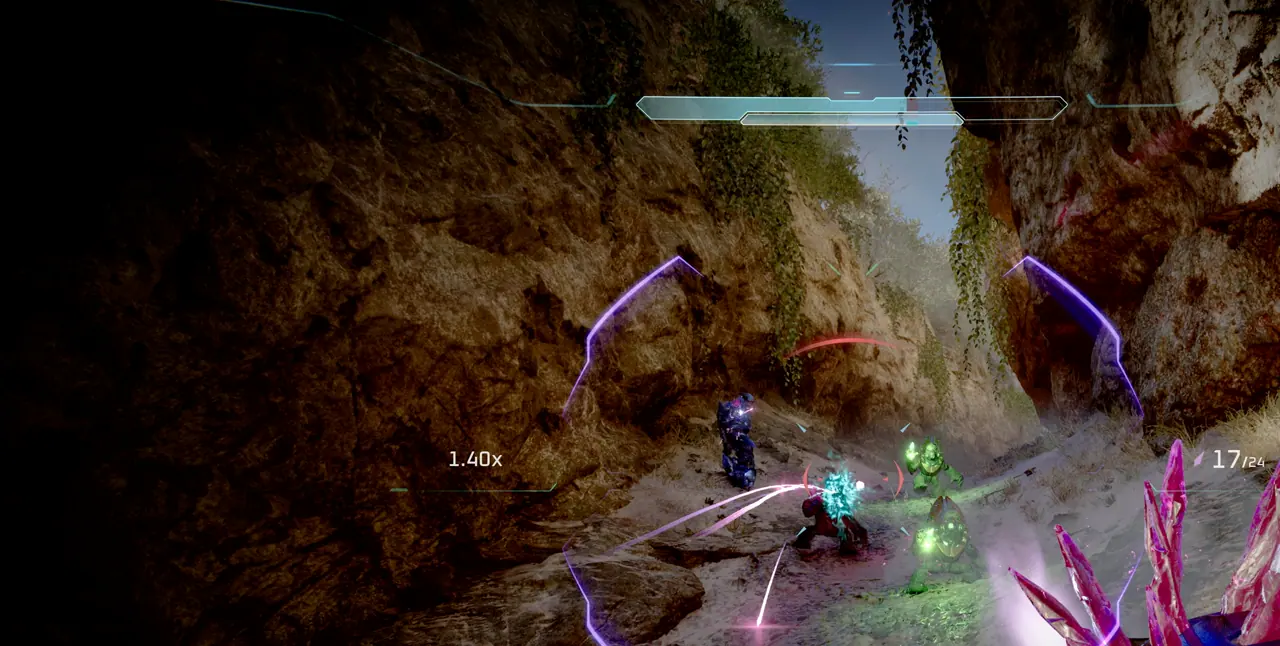
Use a five-minute baseline
Pick a campaign checkpoint with movement, enemies, particles, and an outdoor view. Run the same route before and after each change so the result is comparable.
- Set the monitor to its intended refresh rate in Windows.
- Choose native resolution and disable unrelated background capture tools.
- Start from the preset closest to your GPU tier.
- Record average FPS, low points, and visible frame-time spikes.
- Keep the run and camera path consistent.
Tune in the right order
Large image-quality changes should come before minor details. Stop once the frame rate is stable and the image still looks acceptable at normal viewing distance.
- Set a realistic frame-rate cap.
- Adjust resolution scaling or upscaling quality.
- Move the overall preset one level if the target is still missed.
- Reduce shadows, reflections, volumetrics, and effects individually if exposed by the game.
- Lower texture quality only when VRAM pressure causes hitching or missing assets.
Diagnose stutter separately
A lower average frame rate and intermittent stutter are different problems. Stutter can come from shader compilation, storage pressure, driver issues, overlays, or VRAM saturation.
- Install the current recommended GPU driver and restart.
- Allow initial shader work to complete before judging the first run.
- Keep free space beyond the listed 100 GB installation requirement.
- Disable one overlay or capture tool at a time.
- Watch VRAM use and reduce textures if it stays near the limit.
Laptop and handheld checks
Connect power, select the intended performance mode, and verify that the game uses the discrete GPU. Mobile parts with familiar desktop names can have different power limits, so tune from measured behavior rather than the model name alone.
Frequently asked questions
What setting should I change first?
Set resolution, upscaling, and a realistic frame-rate target before changing individual effects.
Why does the game stutter at a high average FPS?
Check shader compilation, VRAM pressure, storage space, drivers, and overlays; average FPS can hide frame-time spikes.
Should I copy a settings video exactly?
Use it as a starting point only when the hardware, resolution, game build, and target frame rate match yours.